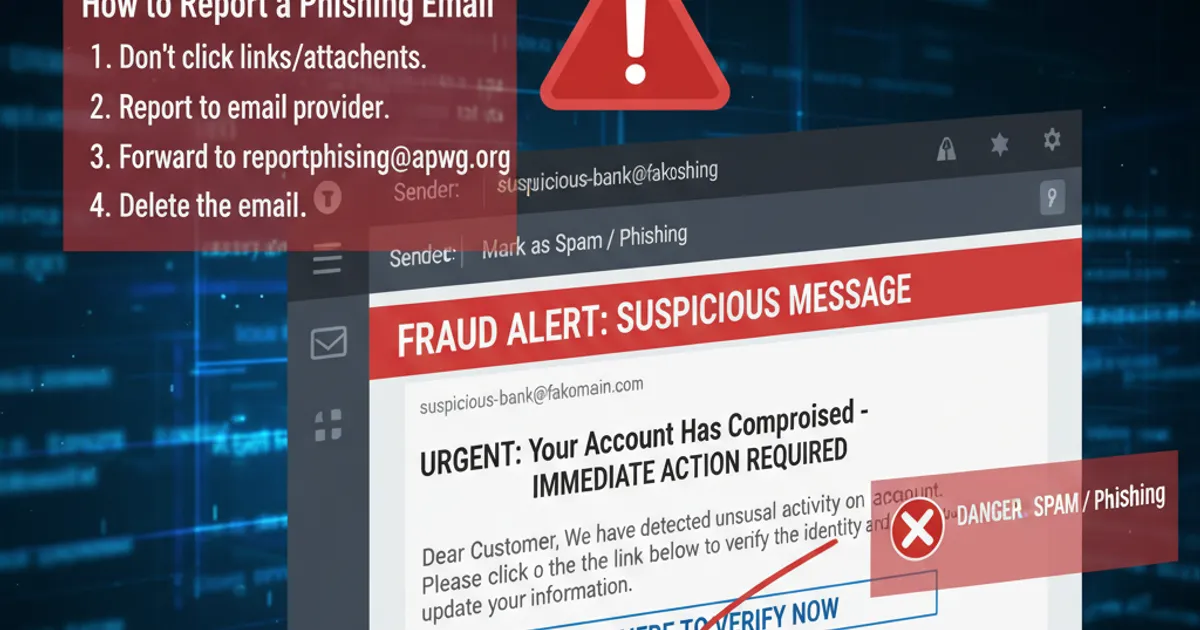

You're staring at an email. It looks like it's from your bank. Or maybe Apple. Or HMRC. Something feels slightly off, but you can't quite put your finger on it.
So — is this email real?
Here's the exact process I use to check if an email is legitimate, broken down into steps anyone can follow. No technical background needed. Bookmark this one.
Step 1: Check the sender's actual email address (not the display name)
This is where most phishing falls apart immediately.
Every email has two parts to the "from" field: the display name (what you see) and the actual email address (what's behind it). Scammers set the display name to "Apple Support" or "PayPal Security" — but the actual address tells the truth.
How to see it:
- Gmail: Click the small dropdown arrow next to the sender's name
- Outlook: Hover over the sender's name or click it
- Apple Mail: Click the sender's name to expand the full address
- Yahoo: Click the sender's name
What you're looking for: does the domain (the part after @) match the company?
✅ [email protected] — legitimate Apple domain
❌ [email protected] — nope
❌ [email protected] — companies don't use Gmail for official communications
❌ [email protected] — that's a capital I, not a lowercase L
That last one is sneaky. Attackers register domains with lookalike characters: rn looks like m, vv looks like w, 1 looks like l. Copy the domain into a text editor with a monospaced font if you're unsure.
Step 2: Hover over every link (but don't click)
Before clicking anything, hover your mouse over links in the email. Your email client will show the actual URL — usually in the bottom-left corner of the window or as a tooltip.
What to look for:
- Does the URL domain match the company?
https://www.paypal.com/accountis fine.https://paypal.account-verify.com/loginis not — the actual domain there isaccount-verify.com. - Is it using HTTPS? Not a guarantee of legitimacy, but HTTP-only links from major companies are a red flag.
- Is there a URL shortener? Legitimate companies rarely use bit.ly or tinyurl in their official emails.
On mobile: Long-press the link instead of tapping. You'll get a preview popup showing the real URL.
Pro tip: The real domain is always the last part before the first single /. In https://login.microsoft.com.evil-site.com/page, the actual domain is evil-site.com, not microsoft.com.
Step 3: Read the email headers (the simplified version)
Email headers sound technical, but you only need to check two things. Headers are like a postal tracking history — they show where the email actually came from and what route it took.
How to view headers:
- Gmail: Open email → three dots (top right) → "Show original"
- Outlook: Open email → three dots → "View message source" or "View message details"
- Apple Mail: View → Message → All Headers
Once you're looking at headers, search for these two things:
1. Return-Path or Envelope-From
This should match the sender's domain. If the email claims to be from Amazon but the Return-Path is [email protected], that's your answer.
2. SPF, DKIM, and DMARC results In Gmail's "Show original" view, you'll see these right at the top as PASS or FAIL. Here's what they mean in plain English:
- SPF: PASS — the sending server is authorised to send email for that domain
- DKIM: PASS — the email hasn't been tampered with in transit
- DMARC: PASS — the domain owner's anti-spoofing policy checks out
If all three say PASS, the email genuinely came from the claimed domain's infrastructure. That doesn't guarantee the content is trustworthy (the account itself could be compromised), but it rules out basic spoofing.
If any show FAIL — treat the email as suspicious.
Step 4: Reverse image search suspicious logos and branding
Phishing emails often use slightly outdated or altered company logos. If something looks off about the branding:
Right-click the logo → "Save image as" or "Copy image"
Go to Google Images and click the camera icon
Upload the image
If the logo is legitimate, you'll see it appear across the real company's web presence. If it's slightly modified or doesn't match current branding, that's a red flag.
This is particularly useful for emails claiming to be from smaller companies or local businesses where you can't easily recall what their real branding looks like.
Step 5: Check the content for pressure tactics
Legitimate companies almost never:
- Threaten to close your account within 24 hours
- Demand immediate payment via gift cards, cryptocurrency, or wire transfer
- Ask you to verify your password by replying to an email
- Use vague greetings like "Dear Customer" instead of your actual name (though some legitimate bulk emails do this)
The urgency trick works because it bypasses your rational thinking. When you read "Your account will be suspended in 2 hours," your brain shifts into panic mode. That's by design.
Take a breath. No legitimate company will penalise you for taking an hour to verify their email is real.
Step 6: Go directly to the source (never use the email's links)
This is the most reliable step of all.
If an email says there's a problem with your account, don't click their link. Instead:
Open a new browser tab
Type the company's URL directly (e.g.,
amazon.co.uk)Log into your account normally
Check for any alerts, messages, or issues
If there's genuinely a problem, you'll see it in your account. If there isn't — the email was fake.
Step 7: When in doubt, call them — but find the number yourself
If you're still unsure, call the company. But never use a phone number from the suspicious email. Scammers include fake support numbers that connect you to their own call centres.
Find the real number by:
- Going to the company's official website (typed manually)
- Checking the back of your bank card for your bank's number
- Searching "[company name] customer service phone number" and using the number from their official site
Tell them you received an email and want to verify it's genuine. They'll be happy to check — they deal with this constantly.
Quick reference checklist
Here's the condensed version you can use every time:
- Sender's actual email address matches the company domain
- Links point to the real company domain (hover to check)
- No urgency/threats demanding immediate action
- SPF/DKIM/DMARC pass (if you check headers)
- Account shows the same alert when you log in directly
- Grammar and formatting look professional
If the email fails even one of these checks, treat it as suspicious.
What about emails that pass every check?
Here's the uncomfortable truth: some phishing emails are genuinely good. Business email compromise attacks use real, hacked email accounts — so SPF, DKIM, and DMARC all pass. The email comes from a legitimate address because the attacker has actually taken over that account.
These attacks are harder to catch manually because the technical indicators are all clean. That's where the content itself matters: is the request unusual? Is someone you know asking you to do something out of the ordinary, like wiring money or sharing credentials? When the technical checks all pass but the request feels wrong, trust your gut and verify through a different channel.