
You clicked it. Maybe you realised immediately. Maybe it took a few hours. Either way, you're here now, and "you shouldn't have clicked that" isn't helpful advice anymore.
Let's talk about what actually just happened on a technical level, how bad the damage might be, and — most importantly — what you should do in the next 10 minutes. Time matters here.
What Happens in the First 500 Milliseconds
When you click a phishing link, you almost never land directly on the attacker's page. Here's the typical chain:
Step 1: The redirect gauntlet. Your browser hits a URL shortener or legitimate-looking redirect (often through Google Ads, Firebase, or a compromised WordPress site). This serves two purposes: it hides the final destination from email scanners, and it lets the attacker swap out the endpoint later if the phishing page gets taken down.
A typical chain might look like:
bit.ly/3xF7kQ2
→ legitimate-site.com/redirect?url=...
→ tracking-service.com/click/abc123
→ microsoft-365-login.phishingdomain.com/auth
Three or four hops, completed in under a second. Your browser's address bar shows each one briefly, but you'd have to be watching carefully to notice.
Step 2: Fingerprinting. Before showing you anything, the landing page often runs a quick JavaScript check: what's your browser? What OS? Are you on mobile? What's your IP geolocation? What's your screen resolution?
This isn't just analytics. Attackers use fingerprinting to serve different content to different visitors. Security researchers and automated scanners often get redirected to a benign page (Google's homepage is a popular choice). Real victims get the phishing page. Some kits even check if your IP belongs to a known VPN provider or security company.
Step 3: The payload. Now one of several things happens, depending on what kind of phishing attack this is.
Scenario A: Credential Harvesting (Most Common)
You see a login page. It looks exactly like Microsoft 365, Google Workspace, your bank, or whatever service the attacker is impersonating. It's often pixel-perfect because attackers don't redesign these pages — they clone them using tools like Evilginx, Gophish, or simple wget copies of the real site.
You enter your username and password. The phishing page captures them and does one of two things:
Stores and redirects. Your credentials are logged, then you're redirected to the real login page. You log in normally, everything seems fine, and you assume the first page was a glitch. Meanwhile, the attacker has your password.
Real-time relay (adversary-in-the-middle). This is the more dangerous variant. Tools like Evilginx2 sit between you and the real service, relaying your credentials in real time. You're actually logging into the real Microsoft 365 — through the attacker's proxy. This means the attacker captures not just your password but your session token after you've completed MFA. Your multi-factor authentication just got bypassed.
This is why "just enable MFA" isn't the complete answer people think it is. Adversary-in-the-middle attacks have been rising sharply — Microsoft reported a 146% increase in AitM phishing attacks in 2023.
Scenario B: Malware Download
The page either automatically downloads a file or presents a convincing reason to download one: "Your document is ready — download here" or "Update required to view this content."
Common payloads include:
- Info-stealers (RedLine, Raccoon, Lumma) that grab saved passwords, browser cookies, crypto wallets, and autofill data within seconds of execution
- Remote Access Trojans (RATs) that give the attacker persistent access to your machine
- Ransomware loaders that download the main ransomware payload after establishing a foothold
Modern info-stealers work fast. RedLine Stealer can exfiltrate your browser's saved passwords, cookies, and autofill data in under 30 seconds after execution. By the time you think "that download seemed weird," your data may already be on a server in another country.
Scenario C: Browser Exploitation (Less Common Now)
In years past, simply visiting a malicious page could trigger a browser exploit that installed malware without any download. These "drive-by downloads" are rarer now thanks to browser sandboxing and automatic updates, but they still exist — particularly if you're running outdated software or browser extensions with known vulnerabilities.
Scenario D: OAuth/Consent Phishing
Instead of a fake login page, you're redirected to a real Microsoft or Google authentication page, but it's requesting you grant permissions to a malicious third-party app. "CompanyDocs wants to access your email, contacts, and files."
If you click "Allow," the attacker gets an OAuth token that lets them read your email, send messages as you, and access your files — without ever knowing your password. MFA doesn't help here because you authenticated legitimately. And revoking access requires finding the app in your account settings, which most people don't know how to do.
What to Do Right Now (The 10-Minute Playbook)
If you clicked a phishing link and you're reading this in real time, here's your action plan in priority order:
First 2 minutes — Disconnect and stop the bleeding:
Disconnect from the network. If you're on a corporate device, turn off Wi-Fi and unplug ethernet. This prevents any downloaded malware from communicating with command-and-control servers or spreading laterally.
Don't close the browser tab yet. You might need the URL for your IT team's investigation. Take a screenshot of the address bar.
Minutes 2-5 — Secure your accounts:
Change your password immediately for whatever service was being impersonated — from a different device (your phone, a colleague's computer). If the phishing page was a Microsoft 365 login, change your Microsoft password right now.
Change passwords for any other account that shares the same password. Yes, this is why password reuse is so dangerous.
Revoke active sessions. In Microsoft 365: Security settings → Sign out everywhere. In Google: Security → Manage devices → Sign out of all other sessions. This invalidates any stolen session tokens.
Minutes 5-10 — Report and contain:
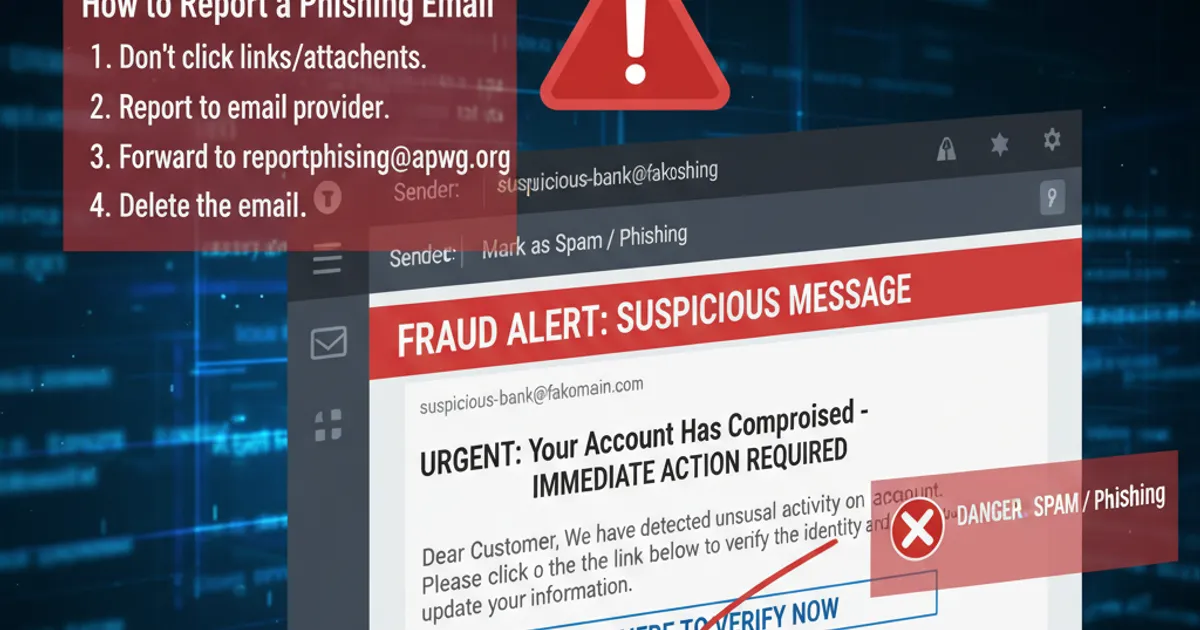
Report to your IT team or MSP. Give them: the URL you clicked, what you saw, whether you entered any credentials, and whether anything downloaded. Don't be embarrassed — fast reporting prevents escalation.
Check your sent folder and email rules. Attackers who gain mailbox access often create forwarding rules (to exfiltrate future emails) and send phishing emails to your contacts from your account. Look for rules you didn't create.
Run a malware scan on the device if anything downloaded. Use your company's endpoint protection, or if on a personal device, use Windows Defender (it's genuinely decent now) or Malwarebytes.
Next 24 hours — Monitor:
Watch for unusual activity on your accounts: unexpected password reset emails, new devices logged in, emails you didn't send, unfamiliar OAuth apps granted access.
Enable MFA on any account that doesn't already have it. Yes, MFA can be bypassed by sophisticated attacks, but it still blocks the vast majority of credential stuffing from stolen passwords.
The Uncomfortable Maths
Verizon's 2024 Data Breach Investigations Report found that the median time to click a phishing link is 21 seconds from email delivery. The median time to enter credentials on a phishing page is 28 seconds after that. Under a minute from delivery to compromise.
Humans aren't going to out-speed that. We're not built to make critical security decisions in 21 seconds while we're thinking about the meeting we're late to and the report that's due tomorrow.
This isn't a failure of awareness training. It's a recognition that asking humans to be perfect security filters for every email, every day, is an unrealistic strategy. The safety net has to exist before the click, not after.